top of page

You can improve the performance of Relativity analytics operations by increasing the amount of RAM available for Java. The Java heap is the amount of memory allocated to the Java Virtual Machine (JVM). The JVM is a program that executes other programs written in Java.

Relativity recommends that servers which are used for indexing and structured analytics allocate about 50% of available RAM to Java. This setting should be increased to 75% if only structured analytics is being performed. Only a third of total RAM should be assigned to the Java heap if a server is used only for indexing.

A server will need an amount of RAM in bytes equal to 6000 times the number of documents involved in an index build. So, a training set of a million documents for an index build will require 6 GB of RAM. The same equation applies for calculating the Java heap size needed for a structured analytics set.



Relativity has a mass operation application, "Set Long Text Field Size" which you can use to calculate the size of long text field. A decimal field must be set up to hold the value that this mass op generates.

The text size will be listed in kilobytes - KB. This mass operation works like others - you need to check off the items you want to process, or check all items in a set. It will be possible to edit the documents in this set for the text field size even if you only have read only permissions to the documents.

A new form will appear. On this form will be a drop down menu of the existing long text fields. Another drop down menu will give you access to all decimal fields that have been set up.


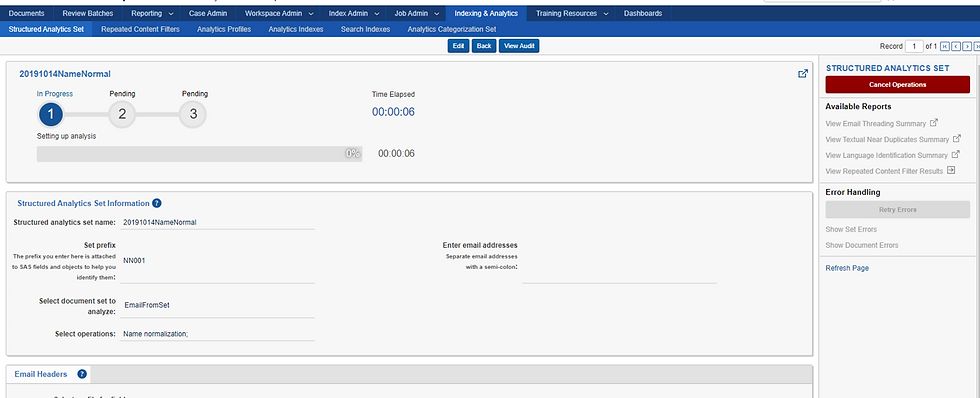
To run name normalization in Relativity to identify email aliases, follow these steps:

1. Under Indexing & Analytics, create a new Structured Analytics set.

2. Enter a name and prefix for the set.

3. The document set to analyze should include all emails in the workspace. Documents with more than 30 MB of extracted text will be automatically excluded.

4. Check off the box for the 'name normalization' operation.

5. A profile must be selected which has each of the email header fields mapped to it.

6. Note that you can choose to set the radial dial for the email header fields to 'No' and just run name normalization on the extracted text.

7. Save the set. In the console on the right, you'll have the option to run the structured analytics set. You will be prompted to either run on the full set or just newly added documents. In a new set, all documents will be analyzed no matter what option is selected at this point.

8. Tonight it only took Relativity about four minutes to find more than 2900 email aliases in a set of about 1600 emails.


Sean O'Shea has more than 20 years of experience in the litigation support field with major law firms in New York and San Francisco.   He is an ACEDS Certified eDiscovery Specialist and a Relativity Certified Administrator.

The views expressed in this blog are those of the owner and do not reflect the views or opinions of the owner’s employer.

If you have a question or comment about this blog, please make a submission using the form to the right. 

Your details were sent successfully!

© 2015 by Sean O'Shea . Proudly created with Wix.com

bottom of page