top of page

Relativity recommends that its analytics tools be used in particular ways in different document review scenarios.

1. Document Review with Time and Subject Matter Constraints

Relativity suggests using clustering in a situation where there are a large number of documents (more than 40K); little time to conduct document review; and no subject matter expert. Follow these basic steps:

A. Batch documents group in clusters and assign them to reviewers, having each reviewer work on documents from a single cluster.

B. Bulk code clusters of documents.

C. Eliminate clusters of clearly irrelevant documents - junk emails, etc.

2. Finding Hot Documents

If a client's production has been fully reviewed, issue coded, and hot documents have been flagged, Relativity recommends using categorization to find hot documents in an opposing production quickly.

A. Create a categorization set. Use the issue field for the client production to generate categories and select example documents.

B. Set the synchronization option for the categorization set.

C. Use the categorization set to categorize the opposing production - Synchronization will automatically create categories based on the issue field choices and automatically designate example records.

D. Opposing production documents similar to those in the examples will be automatically grouped together.

3. Finding Privileged Documents

You can use Analytics to find privileged documents prior to production, if you've already located some privileged documents and designated some documents as responsive.

A. Set the view created for the privilege log, and then right click to select 'Find Similar Documents' in the document viewer.

B. Set the Privilege field to 'Not Set' and filter, when reviewing the similar documents.

4. Finding Unknown Relevant Terms

Keyword expansion can be used to find unknown relevant terms, if other keywords for a document set have already been determined.

A. Right click and select Keyword Expansion in the extracted text for a record in the document viewer to find conceptually related terms.

B. On the search panel select the Index Search as the condition, and then select an analytics index. Enter one or more search terms and then click Expand to show a list of keywords which will each be assigned a rank value.

The terms shown in the Conceptual Keyword Expansion dialog are hyperlinked and can be clicked on to run searches.


 
 
  • Aug 3, 2019

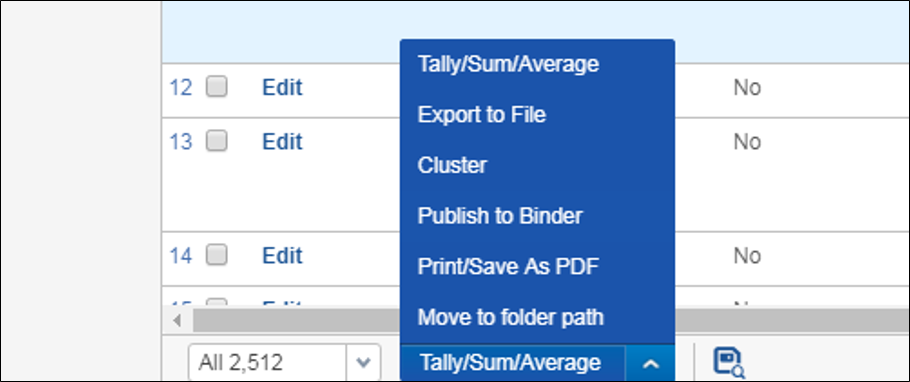
Bear in mind that if you have 'Cluster' available in the mass operations menu in Relativity, it will not function if the admin has not enabled queries for at least one analytics index.

If this is not the case, after selecting a subfolder, (or the top level folder in the browser for all the documents in the workspace) and choosing Cluster, Relativity will present you with a notice reading, "There are currently no indexes with queries enabled available for clustering".

The analytics index must be edited and rerun with the queries enabled. Refer to the console at the right when editing an individual index in the Indexing & Analytics . . . Analytics Index tab.

Queries are enabled after the index is populated and built, but before it is activated.


In Relativity you can use the clustering conceptual analytics tool to create groups of conceptually similar documents without the need to define categories, or select a set of training documents. Relativity will position documents in a conceptual index and then use a naming algorithm to label each node in groups of clusters. Clustering is a good way to get an overview of a new data set.

1. First go to the Documents tab and select the set you want to cluster. A clustering operation can be run on a saved search, a folder, or the complete workspace. Individual documents can be checked off.

2. Choose 'Cluster' from the mass operations drop down menu at the bottom of the screen.

3. You'll have the option to create a new cluster, or replace an existing cluster. If you choose to create a new cluster, you will be prompted to name the cluster and select an index. The index must have queries enabled, and all of the documents to be cluster must be covered by the index. [Any documents that are not will be put in a cluster named 'Not Clustered'. Documents without any searchable text will be placed in a separate group named, 'UNCLUSTERED'. All documents in the workspace which are not submitted for clustering will be in a cluster named, 'Not set'.]

4. In the Title Format field, select one of the three options:

a. Outline and Title - shows a number, title, document count in the cluster, and a coherence score.

b. Outline Only - number, document count in the cluster, and a coherence score.

c. Title Only - title, document count in the cluster, and a coherence score.

The title will be limited to four words.

5. Maximum Hierarchy Depth - this setting is for the number of cluster levels - between 1 and 5. The default is 3. When this value is greater than one, no more than 16 top level clusters will be created.

6. Minimum Coherence - The lower the coherence value, the more loosely related the documents in a cluster will be. When analytics finds documents below the coherence score, it will create subclusters. The default setting is 0.7.

7. Generality - determines the specificity of clusters at each level. It should be set to a value between 0 and 1, 0.5 being the default. A lower generality value will create 'tighter' and more numerous clusters.

8. The option for 'Create Cluster Score Field' will create a field storing a coherence score for each document. If this option is checked, the operation will take significantly longer to complete.

9. The cluster is created in the browser on the left. Click on the asterisk icon.

The numbers used for each cluster and subcluster show the total number of documents in a cluster (including its subclusters), followed by a second number listing the coherence score. So, in this example we can see that the subcluster '6.1.2 party, letter, collateral, paragraph' has 28 documents with a coherence of .91 - a group of very conceptually similar documents.


Sean O'Shea has more than 20 years of experience in the litigation support field with major law firms in New York and San Francisco.   He is an ACEDS Certified eDiscovery Specialist and a Relativity Certified Administrator.

The views expressed in this blog are those of the owner and do not reflect the views or opinions of the owner’s employer.

If you have a question or comment about this blog, please make a submission using the form to the right. 

Your details were sent successfully!

© 2015 by Sean O'Shea . Proudly created with Wix.com

bottom of page