top of page

The Federal Judicial Center’s Effective Use of Courtroom Technology: A Judge’s Guide to Pretrial and Trial is an old manual prepared more than 20 years ago.  It was prepared by a group of nine federal judges working with lawyers and law school professors.  The team was headed by Judge Fern Smith of the Northern District of California and they received assistance from DOAR.   The material is dated, and includes a lot of information intended for legal technology novices.   For example, the guide provides a detailed description of an electronic whiteboard:


. . . and explains ‘internet discovery repositories’ this way:


So any litigation support analyst who has worked on a trial or two should be familiar with much of the information.   The guide is however, a useful authority to refer inexperienced attorneys to - there’s more than one tech-phobic associate working for Big Law with little or no trial experience.   It provides useful suggestions for recurrent problems for which individual court or judge’s rules are unlikely to provide answers.   For example, it suggests this format to mark exhibits which consist of excerpts from complete documents marked as exhibits before trial:


Should the shorter (and easier to key in on the hot seat) ‘PX’ or ‘DX’ prefix be used rather than ’Pl. Ex.’, ‘Def. Ex.’; ‘PTX-‘; ‘DTX-‘ or something else?   How should a page from a pre-marked exhibit be marked as a separate exhibit?  Can an annotation of an exhibit be marked as an exhibit?  The FJC has answers. 


The guide includes some technical information that I was unfamiliar with.   IPIX is a company which has lent its name to 360 degree panoramic photos - IPIX displays.   TIFF images compress document pages at a ratio of 2 to 1 using the Lempel-Ziv-Welch algorithm.  


Effective Use of Courtroom Technology provides invaluable insight into how judges believe technology is best used.   The judges recommend displaying jury instructions as they are read aloud:


. . . they even specify graying out the steps in an instruction after they have been read. 


When showing only a portion of a page to a jury, they caution against ‘photoshopping’ it to remove extraneous text or handwriting like this:


. . . where in the second image the script from the line below has been whited out.  The guide states, “One reason that judges sometimes sustain an objection to this kind of alteration of a cropped segment of a document, even if they are disposed to allow the segment itself, is that some sharp-eyed juror will spot the change and argue about its significance. This wastes time and diverts the jury from its charge.”


The FJC separates courtroom legal technology into three categories, and bases the first part of the guide on a discussion of the tools used in each level. 


  1. Tech that lawyers can always bring into a courtroom: laptops, projectors, etc.. 

  2. Tech provided by a court: built-in monitors, realtime technology, etc.  

  3. Tech used only for certain types of trials.  
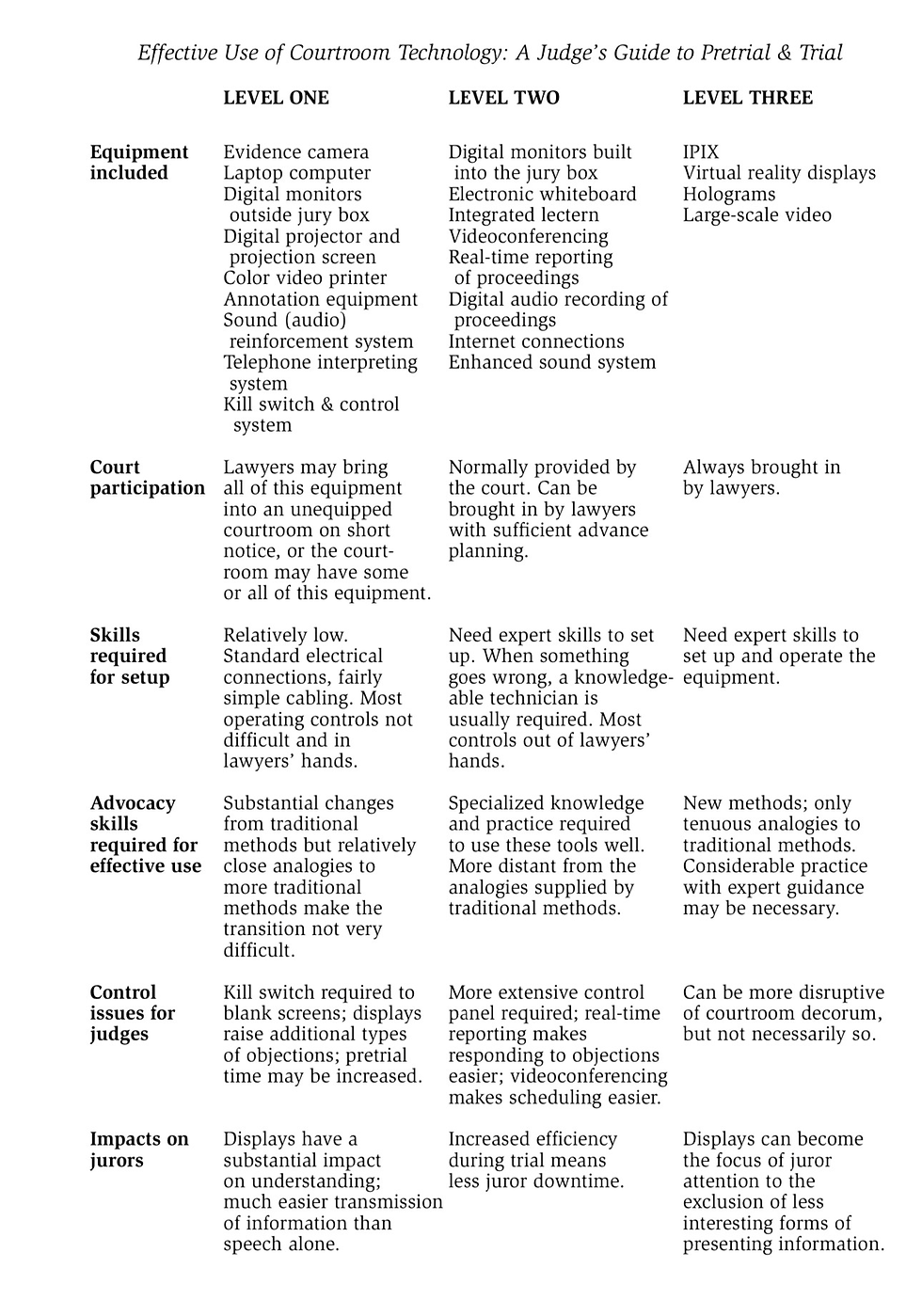


It’s notable that even such an old guide (it’s undated but the references in the content indicate it was published in 2001) raises the possibility of using virtual reality headsets for a trial.  


Note that when a vendor hosting Relativity on secure servers rather than in the cloud, ugrades to Relativity Server 2023, several new features will be available.


Users will no longer have the option to toggle back to the classic interface, and will have to use the Aero UI discussed in the tip of the night for January 24, 2021.


Coding decisions can be implemented for multiple documents in the results for Find Similar Documents in the Viewer. In this function, Relativity searches the full content of the current document in the viewer as the basis for a concept search. You can update multiple fields using a mass operation:


This mass coding operation also works for family documents, documents which are part of the same email thread, near duplicates, and other relational groups.


With the Relativity Server 2023 upgrade, it will also be possible to filter and sort on the view similar document results, as well as the concept search results.


You should also see improvements in email threading with Relativity 2023. It can account for instances in which there are small alterations in a signature used for a message, and thread those messages together.


When using integration points to transfer data from one workspace to another, it is possible to transfer both document object data and non-document object data in the same workflow. So you can move documents, fields, and OCR sets all at the same time.


The OCR function has also been improved, and PDFs of Japanese documents will contain fewer errors.


It's possible to run proximity searches in Excel using the below Visual Basic code. It will highlight any cells in which two given terms appear within a number of words that you set. Simply copy the vba code into a new module in the project list:


. . . the macro will run and prompt you to enter the cell in which the search should begin, and then prompt you to enter the first term, the second term, and the highest number of words which should appear between these terms.


This macro will only search for the terms in the order in which you enter them. It will find when the second term is within X number of words after the first term, but not vice versa.


Thanks to will266 for posting this code here.


Sub proximitySearch()

Dim startCell: startCell = InputBox("Enter Starting cell for search; i.e. B2", "Starting Cell")

Dim termOne: termOne = InputBox("Enter first search term", "Search Term 1")

Dim termTwo: termTwo = InputBox("Enter second search term", "Search Term 2")

Dim proximity: proximity = InputBox("Enter maximum distance between terms", "Proximity Value")


Dim rng As Range, r As Range

Set rng = Range(startCell, Range("a" & Rows.Count).End(xlUp))

rng.Interior.ColorIndex = xlNone

With CreateObject("VBScript.RegExp")

.IgnoreCase = True

.Pattern = termOne + "\S*(\s\S+){0," + proximity + "} " + termTwo

For Each r In rng

If .test(r.Value) Then r.Interior.Color = vbRed

Next

End With

End Sub


Sean O'Shea has more than 20 years of experience in the litigation support field with major law firms in New York and San Francisco.   He is an ACEDS Certified eDiscovery Specialist and a Relativity Certified Administrator.

The views expressed in this blog are those of the owner and do not reflect the views or opinions of the owner’s employer.

If you have a question or comment about this blog, please make a submission using the form to the right. 

Your details were sent successfully!

© 2015 by Sean O'Shea . Proudly created with Wix.com

bottom of page