top of page

The great Allen Wyatt has posted vba code here,

https://word.tips.net/T011069_Finding_Text_Not_Using_a_Particular_Font.html

. . . which you can use to select any text in Word document that is not in a font that you want to retain. This was helpful to me today when I wanted to select just the footnotes in a Word document that had been converted from a PDF file. The converted version did not format the footnotes properly, so other techniques to copy out just the footnotes did not work. The footnotes happened to be in a different font than the text in the body of the document.

Press ALT + F11 to enter Visual Basic, and enter the below vba code in a new module. When the macro is run it will prompt you to enter the name of the font you do not want highlighted.

The text in any other font is highlighted in yellow.

Sub HighlightOtherFonts()

Dim iCounter As Integer

Dim sFontName As String

Dim sPrompt As String

Dim sTitle As String

Dim sDefault As String

Dim c As Range

' Gets the name of the font as typed by the user

sPrompt = "Type the name of the font that is OK to "

sPrompt = sPrompt & "have in the document."

sTitle = "Acceptable Font Name"

sDefault = ActiveDocument.Styles(wdStyleNormal).Font.Name

sFontName = InputBox(sPrompt, sTitle, sDefault)

' Verifies that the name of the font is valid

For Each sFont In Application.FontNames

If UCase(sFontName) = UCase(sFont) Then

' Changes the user-typed name of the font to

' the version recognized by the application

' Example: 'times new roman' (user-typed) is

' changed to 'Times New Roman' (application version)

sFontName = sFont

Exit For

Else

' Terminates the loop if the name of the font is invalid

iCounter = iCounter + 1

If iCounter = FontNames.Count Then

sPrompt = "The font name as typed does not match "

sPrompt = sPrompt & "any fonts available to the "

sPrompt = sPrompt & "application."

sTitle = "Font Name Not Found"

MsgBox sPrompt, vbOKOnly, sTitle

Exit Sub

End If

End If

Next sFont

' Checks each character in the document, highlighting

' if the character's font doesn't match the OK font

For Each c In ActiveDocument.Characters

If c.Font.Name <> sFontName Then

' Highlight the selected range of text in yellow

c.FormattedText.HighlightColorIndex = wdYellow

End If

Next c

End Sub


In their October 2016 ABA Journal article, Tech comes naturally to ‘digital native’ millennials? That’s a myth, Darth Vaughn a partner and legal process services director, and Casey Flaherty, a counsel, both with Haight Brown & Bonesteel discuss the results of their surveys of law students' technology skills. The authors tested several law school classes on the following common MS Word tasks:

• Accept/Turn-off track changes. • Cut & Paste. • Replace text. • Format font and paragraph. • Fix footers. • Insert hyperlink. • Apply/Modify style. • Insert/Update cross-references. • Insert page break. • Insert non-breaking space. • Clean document properties. • Create comparison document (i.e., a redline).

They report that most law students were only able to perform about a third of these tasks. So, don't fall for the myth that the younger generation acquires basic software skills early on. They are apparently learning these techniques on the job.

You can expect someone with an MBA to have taken courses in Excel.


The Tip of the Night for May 26, 2015 discussed how to use a macro to add multiple hyperlinks to documents cited in a Word document. At the end of the Tip I noted:

Note if there are bates numbers containing hyphens, you may wish to find and replace these in Word before you begin. If you don't, the generated hyperlinks will not cover the full length of the cited bates numbers. After the macro is run, you can re-insert the hyphens, and the links will still work.

There is actually a better way of avoiding this problem. You can edit the vba code on the line after the one on which you place the path to the folder containing the documents to be linked. This line:

isHyper = 1

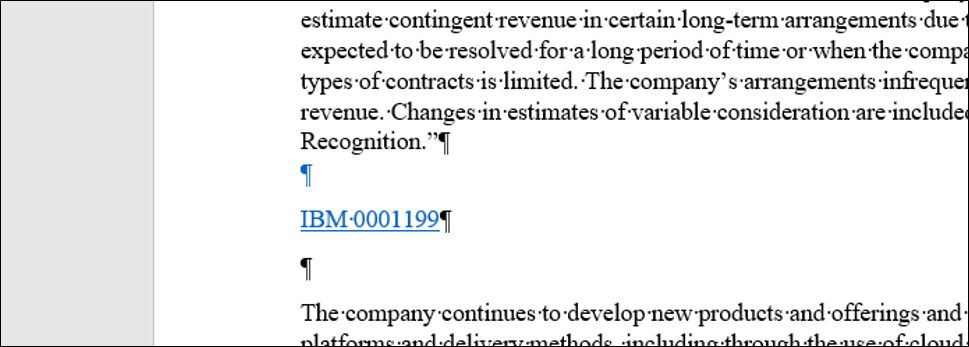
specifies the number of words the link is supposed to cover. If it's set to one, only the word from the right of the tag cited in the concordance file will be covered by the hyperlink. So if you're adding a link to a Bates number that has a space between the letter prefix and the multi-digit number, and the code only reads, 'isHyper = 1', you'll just end up with a link that looks like this:

You can cover each word and space in the link by increasing this number.

The number should reflect the total number of words, spaces, and punctuation marks used in the Bates number or other tag. So increase the number for each word, hyphen, underscore, blank space, period, colon or other symbol used in the tag. When the isHyper number matches the parts of the tag, the full length of the tag will be linked to.

Refer to Tip of the Night for May 26, 2015 for the complete instructions on how to link multiple documents in a Word document automatically.


Sean O'Shea has more than 20 years of experience in the litigation support field with major law firms in New York and San Francisco.   He is an ACEDS Certified eDiscovery Specialist and a Relativity Certified Administrator.

The views expressed in this blog are those of the owner and do not reflect the views or opinions of the owner’s employer.

If you have a question or comment about this blog, please make a submission using the form to the right. 

Your details were sent successfully!

© 2015 by Sean O'Shea . Proudly created with Wix.com

bottom of page