top of page
  • Jun 23, 2018

The folks at Tribblesoft have developed a great utility assist to with writing robocopy commands. As discussed in the Tip of the Night for March 23, 2016 , the Windows robocopy command can be used to copy files with their metadata in inact.

Robocopy can be used with a number of different options. Easy Robocopy help you implement these and compose the proper code.

In this very simple example, we have a folder containing several PDFs. We only want to copy the files between 5 MB and 15 MB in size.

In Easy Robocopy we specify the file size range of the PDFs we need to copy.

. . . and the appropriate command line is generated. Click 'Execute' and the job is complete!

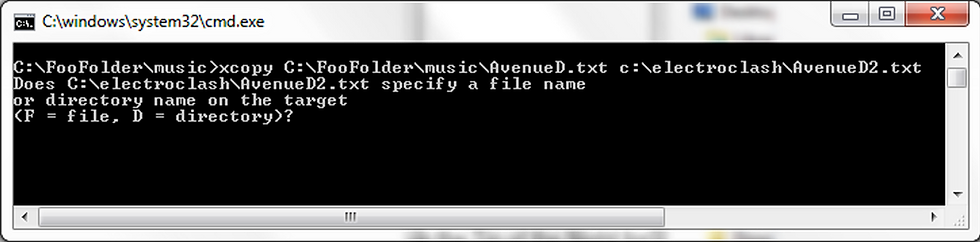


As an alternative to the Powershell script that was the Tip of the Night for May 5, 2018, you can use the Windows XCOPY command in a batch file to both copy files to a new location and rename them. The approach is almost entirely intuitive - just begin each line with the XCOPY command, followed by the path of the source file, and then the path to the renamed destination file. However if you try this approach - as with this test script:

xcopy C:\FooFolder\music\AvenueD.txt c:\electroclash\AvenueD2.txt xcopy C:\FooFolder\music\canseidersexy.txt c:\electroclash\canseidersexy2.txt xcopy C:\FooFolder\music\chicksonspeed.txt c:\electroclash\chicksonspeed2.txt

. . . you'll be forced to specify whether the destination path creates a new directory or a new file.

If you press F for each line of script, the files will be copied and renamed as specified, but if you're dealing with hundreds of files you don't want to get stuck doing this.

In order to solve this problem and have files automatically copy and rename, add an asterisk at the end of each line, so the script is updated this way:

xcopy C:\FooFolder\music\AvenueD.txt c:\electroclash\AvenueD2.txt* xcopy C:\FooFolder\music\canseidersexy.txt c:\electroclash\canseidersexy2.txt* xcopy C:\FooFolder\music\chicksonspeed.txt c:\electroclash\chicksonspeed2.txt*


The Tip of the Night for January 15, 2016, explained how to use the %f command in Windows to merge multiple text files together. Tonight's tip uses code to merge multiple text files together but also include a reference to name of each source text file.

In a folder containing your source text files, put the following code in a text file and change the extension to 'bat'.

@echo off for /r %%i in (*.txt) do ( if not %%~nxi == output.txt ( echo %%~nxi >> output.txt type "%%i" >> output.txt echo. >> output.txt echo. >> output.txt ) )

So if we have a folder of text file like this one:

. . . we can use the command to generate . . .

. . . a single output text file which lists first the source file names (the electroclash bands) followed by the contents (the band member names).

Thanks to Sylvvester for posting this code here.


Sean O'Shea has more than 20 years of experience in the litigation support field with major law firms in New York and San Francisco.   He is an ACEDS Certified eDiscovery Specialist and a Relativity Certified Administrator.

The views expressed in this blog are those of the owner and do not reflect the views or opinions of the owner’s employer.

If you have a question or comment about this blog, please make a submission using the form to the right. 

Your details were sent successfully!

© 2015 by Sean O'Shea . Proudly created with Wix.com

bottom of page