top of page

Don't miss that Excel includes a feature which you can use to make worksheets very hard to find. In Visual Basic, if you go to View . . . Properties Window you will bring up options for each of the worksheets shown in the project list to the left. There is a drop down menu for the Visible field. If the very hidden option is selected . . .


. . . not only will the worksheet not be displayed with the rest of the 'tabs', but it will not be included in the list of worksheets to unhide, when you right click on a worksheet and select 'Unhide'.




If the name is not familiar, it's likely that you will nonetheless recognize this type of graph. Bivariate scatter plots track the pattern of relations between two variables. Each point placed on the plot is assigned a value on the X axis and on the Y axis. A good example of a bivariate scatter plot, is a graph in which the X axis is used to measure weight, and the Y axis is used to measure height. When there is no direct relationship between the value on the X axis, and the value on the Y axis, there will be a lot of scatter. The points will be arranged in a single line, if the value on the X axis increases at a fixed rate as the value on the Y axis increases.


You can create a bivariate scatter plot in Excel by following these steps:

1. Select the range with your data.


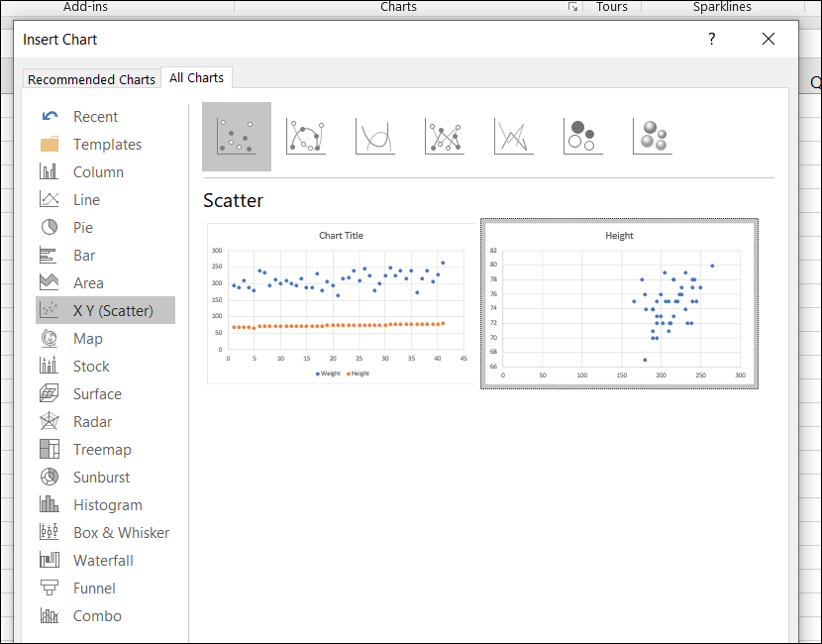
2. On the Insert ribbon, in the Charts section, click on the icon for a scatter plot.


3. Go down to 'More Scatter Charts'.

4. Select an option on the right in the X Y (Scatter) group with height on the Y axis.


5. Resize the chart, and right click on the X axis to set its minimum and maximum bounds to the range for the data set.

6. Right click on the data points in the plot and select Add Data Labels.

7. Change the data labels to the name of each player by selecting data points again, right clicking for Format Data Labels, and then checking off the box for 'Value From Cells'. You will be prompted to select the column with the labels you want to add.


8. Check off the option for 'Show Leader Lines', so you can move around the data labels so they don't overlap. Small lines will connect the labels to the correct data points.

9. Finally, click on the plus sign to the right of the chart and check off the option for trendline.


The result is a complete bivariate scatter plot:


Excel's DSUM formula is a useful alternative to VLOOKUP. It will read the column headings of an array of data, and return the sum based on criteria entered in separate set of cells.


In this example, the DSUM formula:


=DSUM(B8:E33,"Wins",B2:C4)


. . . makes references to the data in B8:E33, and is set to add up the numbers in the 'Wins' column. The array given at the end of the formula checks the criteria to use in filtering down the numbers to add up. So the result will be 59, the number of wins for the listed Mets pitchers in 1971 and 1990.


Sean O'Shea has more than 20 years of experience in the litigation support field with major law firms in New York and San Francisco.   He is an ACEDS Certified eDiscovery Specialist and a Relativity Certified Administrator.

The views expressed in this blog are those of the owner and do not reflect the views or opinions of the owner’s employer.

If you have a question or comment about this blog, please make a submission using the form to the right. 

Your details were sent successfully!

© 2015 by Sean O'Shea . Proudly created with Wix.com

bottom of page