


Use Excel's Solver Add-In To Get the Data for the Results That You Need
Excel includes an optional add-in (which can be accessed from File . . . Options . . . Add-ins) named 'Solver' which you can use to automatically alter the data listed in an array that the result in a formula is based on, so that this data matches the value you want the formula to result in.

When activated it will appear on the Data ribbon in a new group called, 'Analyze'.

We begin by selecting a cell which has the result of a formula in it, then opening Solver. In this example, the result of the sum of home runs on rows 2 to 15 in column I is given in cell I16, 223.
We indicate that want the result to be 300 in the box next to the 'Value Of' radio button.

We want to designate that the result should be given by only changing the totals for players who hit 15 or more home runs, and none of these players should hit more than 50 home runs.

After clicking 'Solve', the following update to the number of home runs is generated.

However we obviously can't use this result because it's not possible to hit 0.2 home runs in baseball.
We can fix the results by specifying in Solver that each entry in column I should be an integer by selecting the option for 'int' in the drop-down menu between the cell references and the constraint box.

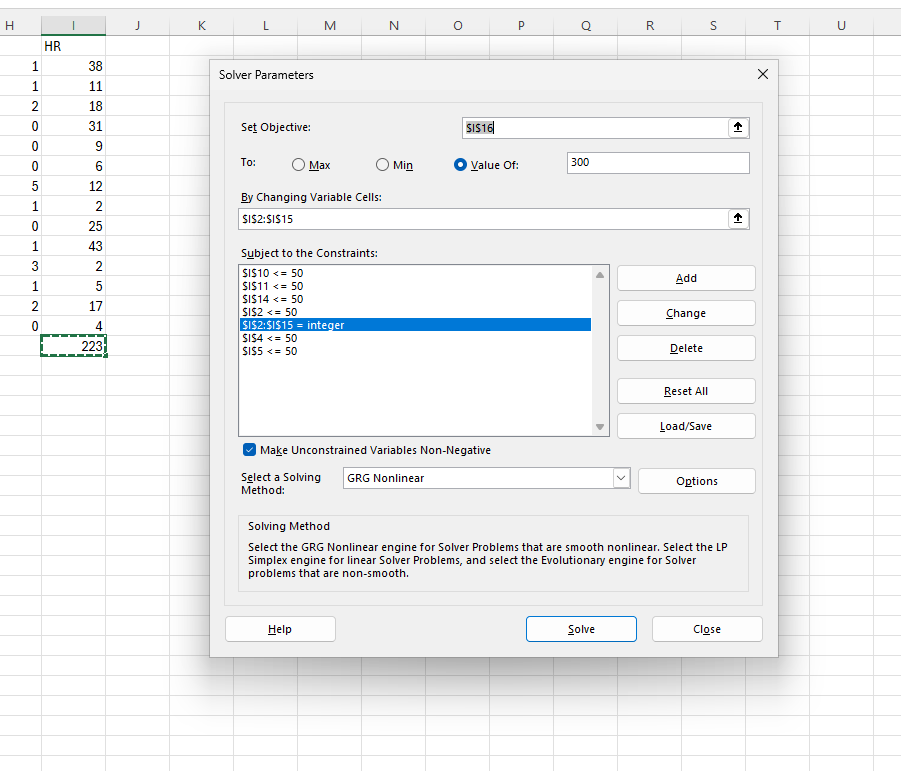
Now when we click 'Solve' only whole numbers are listed in the array that gives us a sum of 300 home runs:
