


Javascript to redact highlighted text in Adobe Acrobat
If you have a set of PDFs which attorneys have highlighted to show which excerpts in the documents they want to be redacted, you can run a Javascript in Adobe Acrobat to convert the highlighted text to redactions.
Follow these steps:
In Acrobat, under Tools, open the 'Action Wizard'.
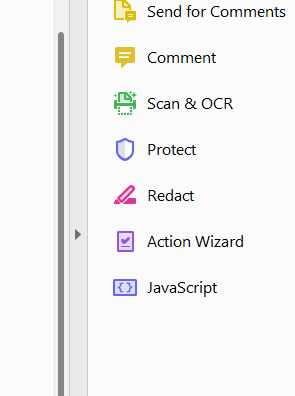
Select 'New Action'

. . . and then add the 'Execute JavaScript' tool. Be sure to uncheck 'Prompt User'

Click on 'Specify Settings' and then add the below script into the Editor:
this.syncAnnotScan();
var annots = this.getAnnots();
if (annots != null) {
for (var i in annots) {
var annot = annots[i];
if (annot.type == "Highlight") {
annot.type = "Redact";
annot.fillColor = color.black
}
}
}
this.applyRedactions();

Next, add a command in the action to save the file.

Under the Save settings, enter a suffix for the new file that will be saved:

Name and save the new action:

When you run the action

. . . it will prompt you to select multiple files

This script will redact highlighting of different colors - not just yellow, but pink, blue, green, or whatever color has been used.


Note that if other text in the PDF has been marked for redaction:

. . . this script will apply those redactions.
