


Files Cut and Paste to New Directory Retain Rights from Original Directory
It's important to keep in mind that a set of files cut from a folder on a Windows network which have rights to one matter (or user group) which are then CUT and pasted to a folder for a different client/matter (and other users) will inherit the rights of the origin folders. Users who only have rights to the destination folder will not be able to access the files.
In order to get around this problem, you can copy the files into another folder in the directory with the same rights as the intended destination folder; delete the files in the intended destination folder; and then copy the files back into the intended destination folder. If you don't delete the files in the intended destination folder, and instead overwrite them when copying back in, the rights will not get updated.
So if files are saved here:
F:\A0100\0002\Johnson Exhibits
. . . .and are then CUT and pasted here:
F:\C0200\0004\Johnson Exhibits
If you check the Properties for F:\C0200\0004\Johnson Exhibits on the Security tab, you should see this:

Note the difference between the client matter name (C0200.0004) used in the object name, and that for the Group with rights, A0100.0002. Obviously, there's a problem. The solution is to do the following:
COPY: F:\C0200\0004\Johnson Exhibits TO: F:\C0200\0004\GeneralFolder
DELETE CONTENTS OF: F:\C0200\0004\Johnson Exhibits
COPY F:\C0200\0004\GeneralFolder TO F:\C0200\0004\Johnson Exhibits
But what if you're worried there may be additional files in a directory with the wrong rights assigned to them? How can you check the rights of all of the files in a directory?
This PowerShell script will generate a list of the rights for all files in the directory that you specify:
Get-ChildItem -Path "C:\Your\Directory" -Recurse | Get-Acl | Select-Object Path, Owner, AccessToString
However, if you run this script you may get an error message:
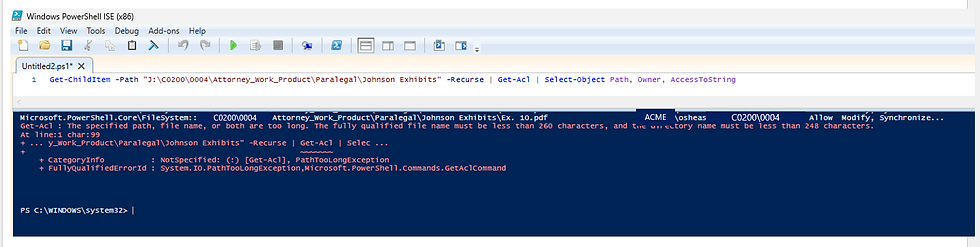
This comes up when there are filepaths longer than 255 - 260 characters - the Windows Explorer limit.
So, before you run the script to get a list of the rights for a directory, you want to run this script to search for any files with a path of 260 characters or longer.
Get-ChildItem -Path "C:\Your\Directory" -Recurse -Force -ErrorAction SilentlyContinue | Where-Object {$_.FullName.Length -gt 260} | Select-Object FullName

Rename those filepaths, and then run the script to find the rights of all files in a folder:

You can then copy the results into Excel and filter for matter numbers other than those which files in the directory should have. Just be sure to filter so that you're only excluding the permissions listed on the right, and not the file paths on the left. So in this example, filter for Does Not Contain 'cg_F:\C0200\0004', not just 'F:\C0200\0004'.