top of page

Stephen R. has posted visual basic code here, which you can use to run a regular expression search on a column in Excel to boldface some but not all of the text inside a cell.

In this example, we have a worksheet on which the Sedona principles have been listed in column A. We want to make the first line in each cell, which lists the principle number, boldfaced.

Press ALT + F11 and in Visual Basic right click on the worksheet in the project list on the left and insert the below code in a new module.

You'll need to update the code so it works on your worksheet and boldfaces the text you're searching for. The Regex search goes on this line:

.Pattern = "Principle [0-9]{1}"

You list the rows to search here:

For RR = 2 To 10

Enter the number of the column you're searching in here [1 = A]:

Set oMatches = .Execute(Cells(RR, 1))

. . . and here:

Cells(RR, 1)

Press the play button in Visual Basic and your text will be boldfaced.

Sub xz()

Dim oMatches As Object, i As Long

Dim RR As Integer

For RR = 2 To 10

With CreateObject("VBScript.RegExp")

.Global = True

.IgnoreCase = True

.Pattern = "Principle [0-9]{1}"

Set oMatches = .Execute(Cells(RR, 1))

For i = 0 To oMatches.Count - 1

Cells(RR, 1).Characters(oMatches(i).FirstIndex + 1, 10).Font.Bold = True

Next i

End With

Next RR

End Sub


The vba code shown below posted here, can be used to split text entered with delimiters inside a cell onto separate rows and repeat the information from adjacent columns on the new rows. So, in this example we have the names of baseball players separated with commas in column A, and the city and team they played for in columns B and C.

When the macro is run the names of each player are listed on separate rows, and the name of their city and team repeats in column B and C.

Edit the line "With Range("A1:C" & LR)" from C to a higher column letter to account for longer arrays. Change given delimiters on these lines:

If InStr(.Value, ",") = 0 Then

X = Split(.Value, ",")

Sub Splt() Dim LR As Long, i As Long Dim X As Variant Application.ScreenUpdating = False LR = Range("A" & Rows.Count).End(xlUp).Row Columns("A").Insert For i = LR To 1 Step -1 With Range("B" & i) If InStr(.Value, ",") = 0 Then .Offset(, -1).Value = .Value Else X = Split(.Value, ",") .Offset(1).Resize(UBound(X)).EntireRow.Insert .Offset(, -1).Resize(UBound(X) - LBound(X) + 1).Value = Application.Transpose(X) End If End With Next i Columns("B").Delete LR = Range("A" & Rows.Count).End(xlUp).Row With Range("A1:C" & LR) On Error Resume Next .SpecialCells(xlCellTypeBlanks).FormulaR1C1 = "=R[-1]C" On Error GoTo 0 .Value = .Value End With Application.ScreenUpdating = True End Sub


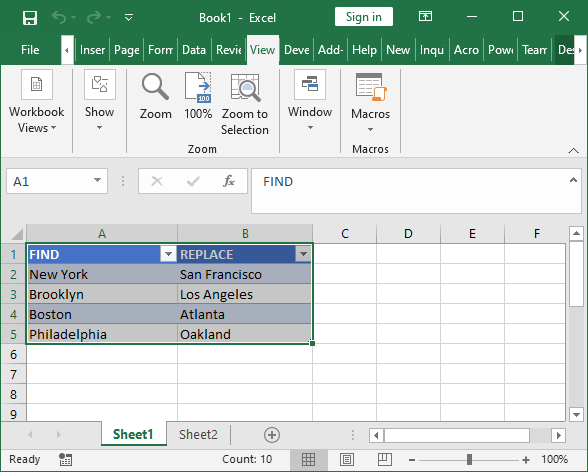
The below VBA code, posted here by the Spreadsheet Guru, can be used to find and replace multiple values in an Excel workbook. List the terms you want to find in column A of 'Sheet1' and the terms they should replace in column B. Select the ranges (not the whole columns) and then press CTRL + T to add the data as 'Table1', the default name.

Put the VBA code in a new module.

Go to View . . . Macros and run the code.

The macro will replace anywhere the listed terms appear on other worksheets. So this worksheet:

. . . is changed to:

This macro will work for strings which don't consist of the entire contents of a cell.

Sub Multi_FindReplace() 'PURPOSE: Find & Replace a list of text/values throughout entire workbook from a table 'SOURCE: www.TheSpreadsheetGuru.com/the-code-vault

Dim sht As Worksheet Dim fndList As Integer Dim rplcList As Integer Dim tbl As ListObject Dim myArray As Variant

'Create variable to point to your table Set tbl = Worksheets("Sheet1").ListObjects("Table1")

'Create an Array out of the Table's Data Set TempArray = tbl.DataBodyRange myArray = Application.Transpose(TempArray) 'Designate Columns for Find/Replace data fndList = 1 rplcList = 2

'Loop through each item in Array lists For x = LBound(myArray, 1) To UBound(myArray, 2) 'Loop through each worksheet in ActiveWorkbook (skip sheet with table in it) For Each sht In ActiveWorkbook.Worksheets If sht.Name <> tbl.Parent.Name Then sht.Cells.Replace What:=myArray(fndList, x), Replacement:=myArray(rplcList, x), _ LookAt:=xlPart, SearchOrder:=xlByRows, MatchCase:=False, _ SearchFormat:=False, ReplaceFormat:=False End If Next sht Next x

End Sub


Sean O'Shea has more than 20 years of experience in the litigation support field with major law firms in New York and San Francisco.   He is an ACEDS Certified eDiscovery Specialist and a Relativity Certified Administrator.

The views expressed in this blog are those of the owner and do not reflect the views or opinions of the owner’s employer.

If you have a question or comment about this blog, please make a submission using the form to the right. 

Your details were sent successfully!

© 2015 by Sean O'Shea . Proudly created with Wix.com

bottom of page